How to Report a Suspiciour Email or Phish
Using the Proofpoint Report Supicious Button
It is important to use the Proofpoint Report Phish options instead of the standard Microsoft reporting tools, as it automates the workflow for reporting, analyzing and feedback.
Click on the Report Suspicious button in the grey banner at the top of the email, please note this button ONLY reports the suspicious email to IT, but does not provide any further action.

To use the Proofpoint Report Phish button in the Outlook Desktop App, follow these steps:
Open the suspicious email in your Outlook inbox.
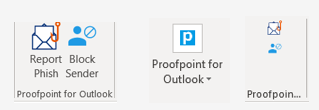
Click on the “Report Phish” button in the Outlook toolbar. (note the look, size and orientation of the button(s) may appear different as the size of the outlook window changes, options you may see are shown below)NOTE: You can also block the sender instead of reporting it as a phish, when the email is not considered suspicious or potentially harmful.
Your personal block sender list should be reviewed and audited periodically as there is a limit of 500 email addresses that can be blocked in this manner. To check your block sender list, visit: Proofpoint Personal Digest
Use the Proofpoint Report Phish button in the Mobile Outlook App, by following these steps:
Open the suspicious email
Click on the 3 dots in the upper right-hand corner of the email
Select the Report Phish Button
Leave a Reply